Accessibility
Enabling UDOIT in Your Canvas Course
Last modified 8/25/2026
Cidi Labs UDOIT (short for Universal Design Online content Inspection Tool) is a Canvas-integrated accessibility checker that helps instructors and staff identify and fix accessibility issues in their course content.
UDOIT scans your Canvas course content for accessibility problems and guides you on how to fix them. UDOIT reviews Canvas pages, assignments, discussions, files, and other content to detect common accessibility issues (like missing alt text, poor heading structure, insufficient color contrast, or inaccessible PDFs) then provides actionable guidance, explaining why an issue matters and how to correct it—often linking directly to the content that needs attention. Get started with the UDOIT User Guide.
Open your Canvas Course
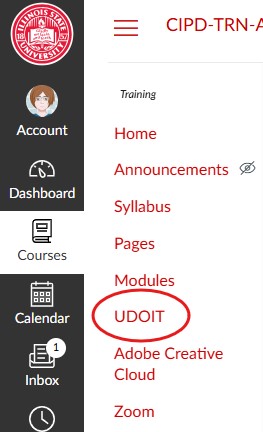
The UDOIT tool will appear in your Course Navigation. Once enabled use the UDOIT User Guide to learn how to scan for and fix accessibility errors in your course. Remember you will need to enable UDOIT for each of your courses.
What does UDOIT scan?
UDOIT scans most content within a Canvas course, including Pages, Assignments, Announcements, Discussions, and many uploaded files. It helps identify common accessibility issues and provides guidance for remediation.
Current limitations
- Classic Quizzes: Due to Canvas API limitations, UDOIT cannot scan individual quiz questions or question banks. It can only scan the quiz description.
- New Quizzes: UDOIT does not currently scan New Quiz content, including questions and item banks.
Because of these limitations, instructors should manually review both Classic Quiz questions and New Quiz content for accessibility issues, such as image alternative text, heading structure, table accessibility, color contrast, and link text.
Resource
Does UDOIT scan Canvas' New Quiz questions and item banks?
Mission: Accessible
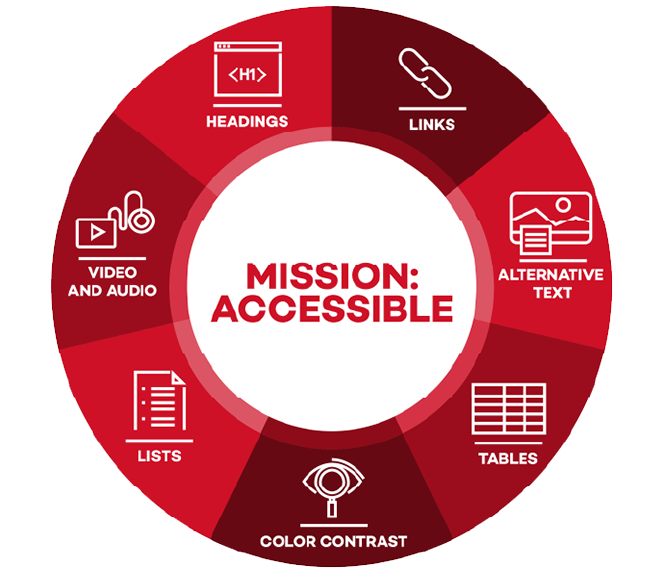
Join us in our Mission: Accessible efforts. The Digital Accessibility Canvas course introduces the fundamentals of digital accessibility and inclusive design. Participants will learn how to create and review digital content that is usable by everyone, including people with disabilities. Through practical examples and actionable guidance, the course highlights simple steps that improve accessibility, support compliance with accessibility standards, and enhance the overall user experience.
Learn how to create more inclusive course content from the start with simple, effective accessibility practices.
Enroll in the Digital Accessibility Canvas course.
Feedback
To suggest an update to this article, ISU students, faculty, and staff should submit an Update Knowledge/Help Article request and all others should use the Get IT Help form.